Comment and ask
Threads work the way you expect from a pull request. This page covers what is specific to Viewport.
Where a thread can sit
Section titled “Where a thread can sit”- On a line. In Changes, hover over a line and click the + beside its number.
- On a file. In Changes, click the comment icon at the right of the file’s header.
- On the whole review. In Activity, use the comment box at the bottom.
Every thread also appears in Activity, in the order it was started, labeled with where it sits. Reply, edit and resolve from either place.
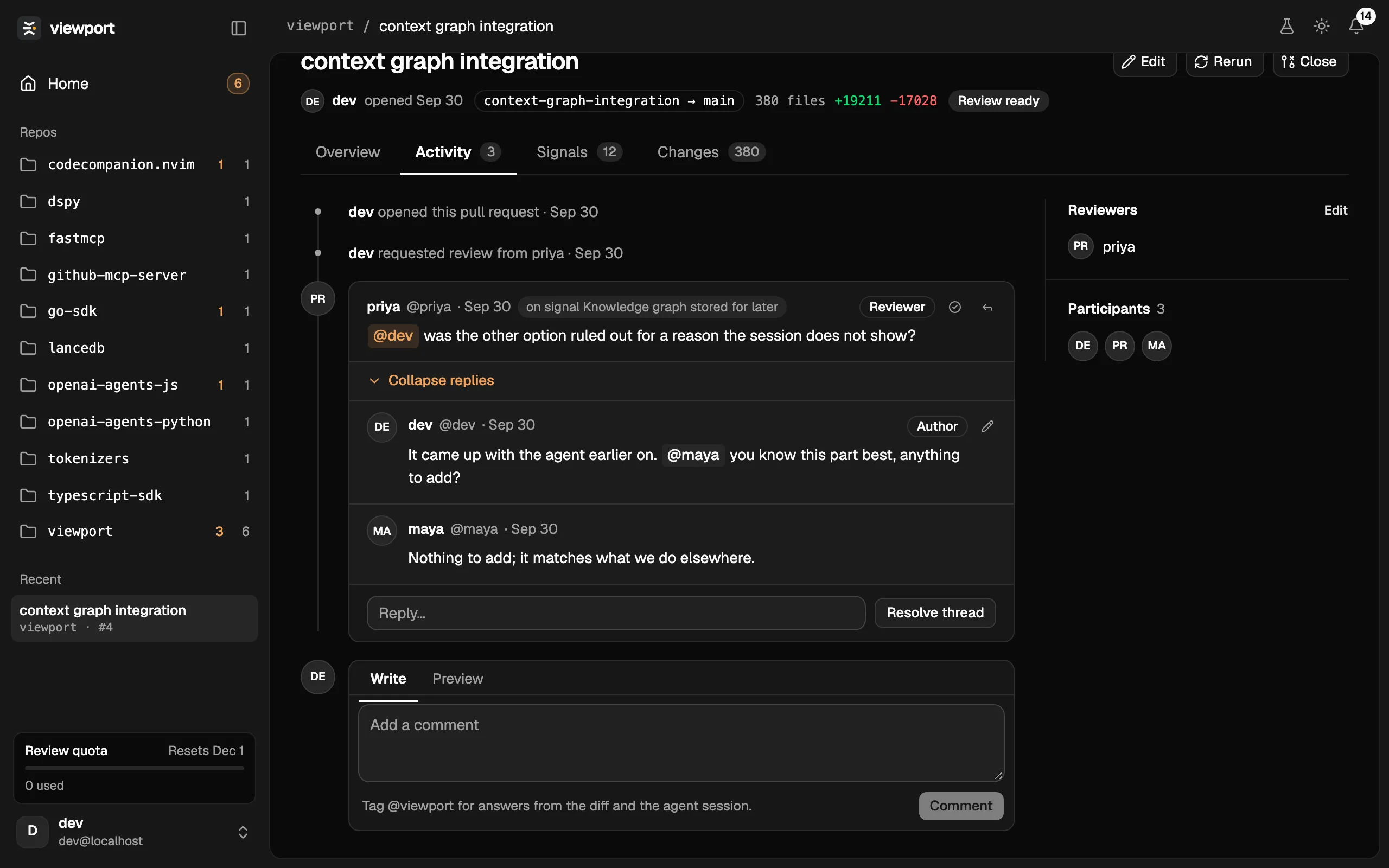
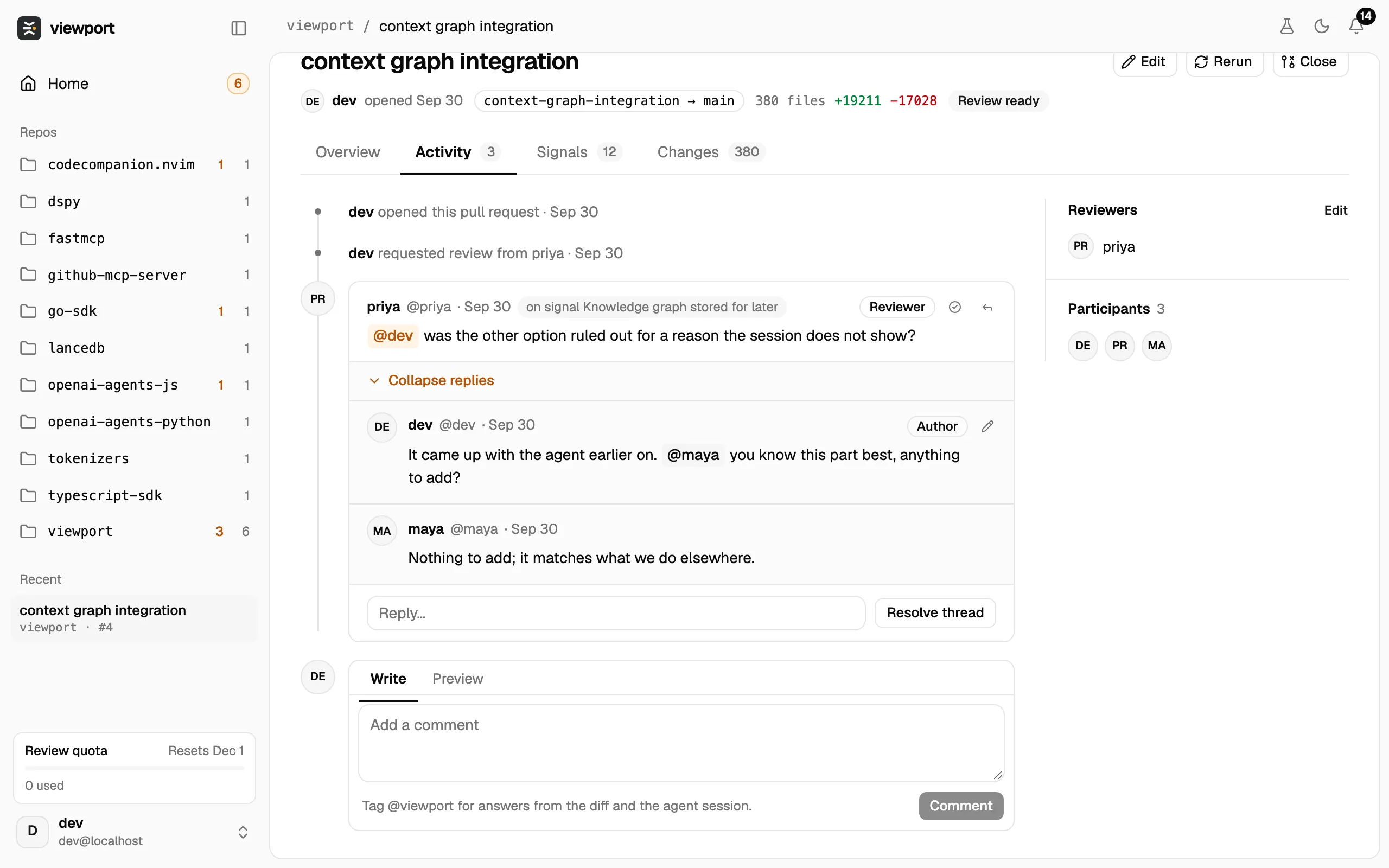
Comments are Markdown. A file and line written as path:line, such as cli/src/pr.ts:42, becomes a link that opens that line in Changes.
Mentions
Section titled “Mentions”Type @ to pick someone from your organization. They get a notification.
Reviewers
Section titled “Reviewers”On the Overview or Activity tab, Reviewers lists who is asked to review. Click Edit beside it to add or remove people from your organization; each person added gets a review request. Participants shows everyone who has taken part.
Notifications
Section titled “Notifications”The bell at the top right counts what you have not read.
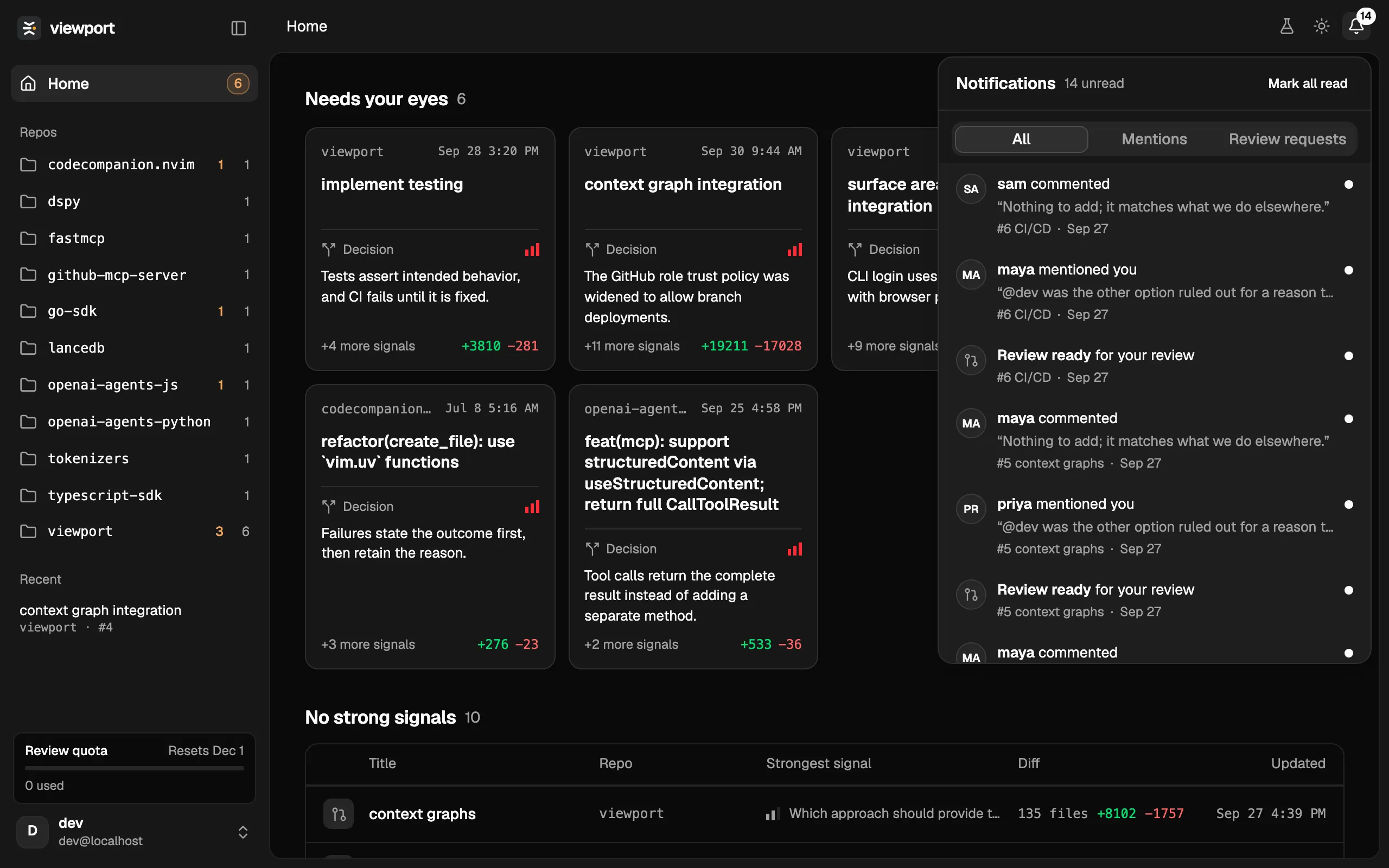
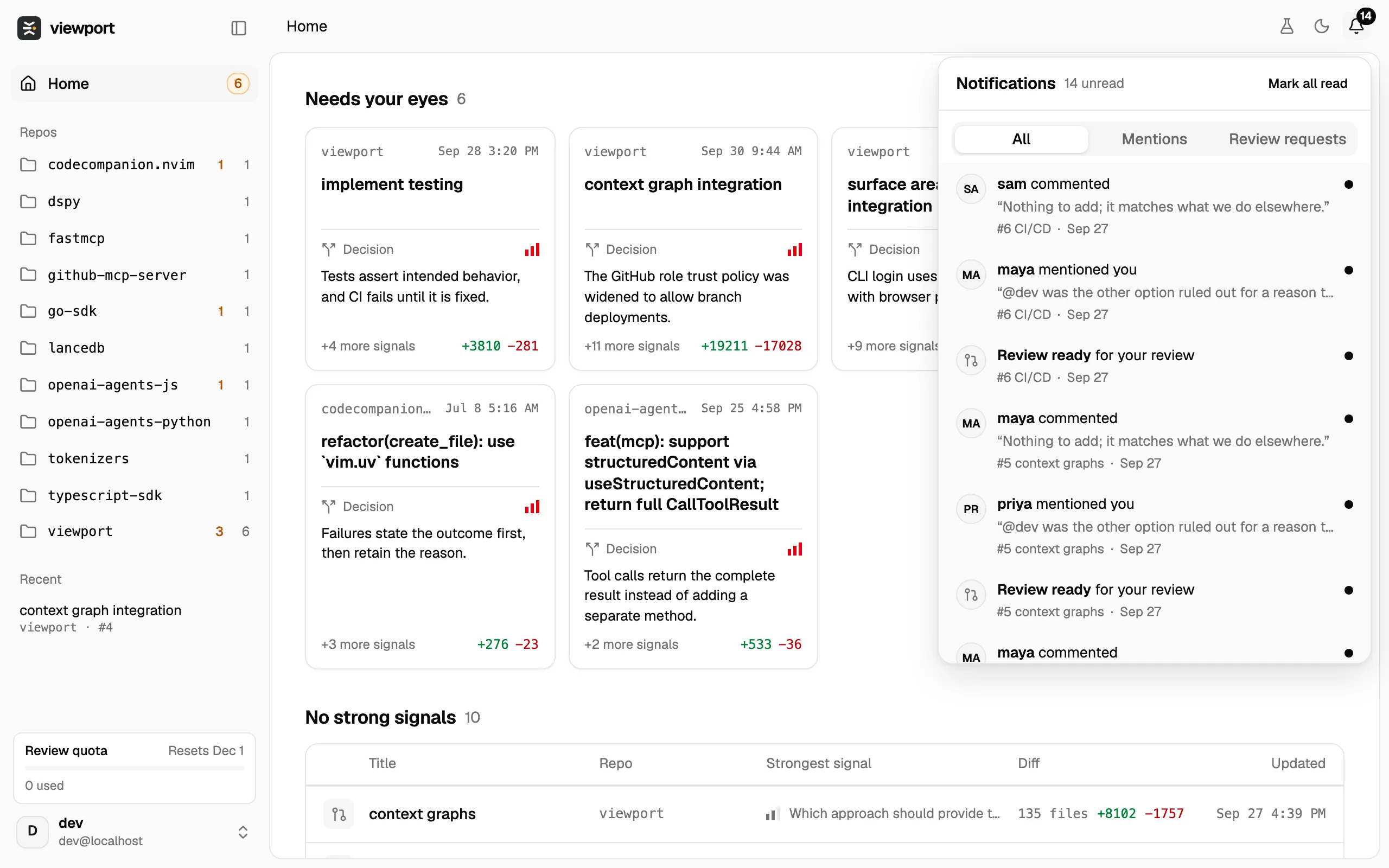
You get one when someone mentions you, comments on a review you are part of, requests your review or removes you as a reviewer, or when a run finishes or fails on a review you wrote or are reviewing. Filter with All, Mentions and Review requests; Mark all read clears the count.