Install the CLI
The viewport command sends your branch and your agent conversation to Viewport. You install it once per machine.
Requirements
Section titled “Requirements”- macOS or Linux, on arm64 or x86_64. Windows is not supported.
curl,git, andsha256sumorshasum.
Install
Section titled “Install”curl -fsSL https://tryviewport.ai/install.sh | shThe installer:
- Downloads the
viewportbinary for your platform and checks it against its published checksum. - Installs it to
~/.local/bin/viewport. - Runs
viewport install, which adds the/viewportcommand and conversation capture to each coding agent it finds. See Connect your coding agent.
Add it to your PATH
Section titled “Add it to your PATH”If ~/.local/bin is not on your PATH, the installer says so and prints the line to add. For bash and zsh it is:
export PATH="$HOME/.local/bin:$PATH"Add it to your shell’s rc file (for example ~/.zshrc), then open a new terminal. Check the install with viewport --version.
Sign in
Section titled “Sign in”viewport loginThe terminal prints a code and a URL and opens your browser on the page Sign in the Viewport CLI. If you are not signed in to the app, it asks you to sign in first. The page shows the code, the Device (your machine’s hostname and operating system) and the Client (the CLI’s version).
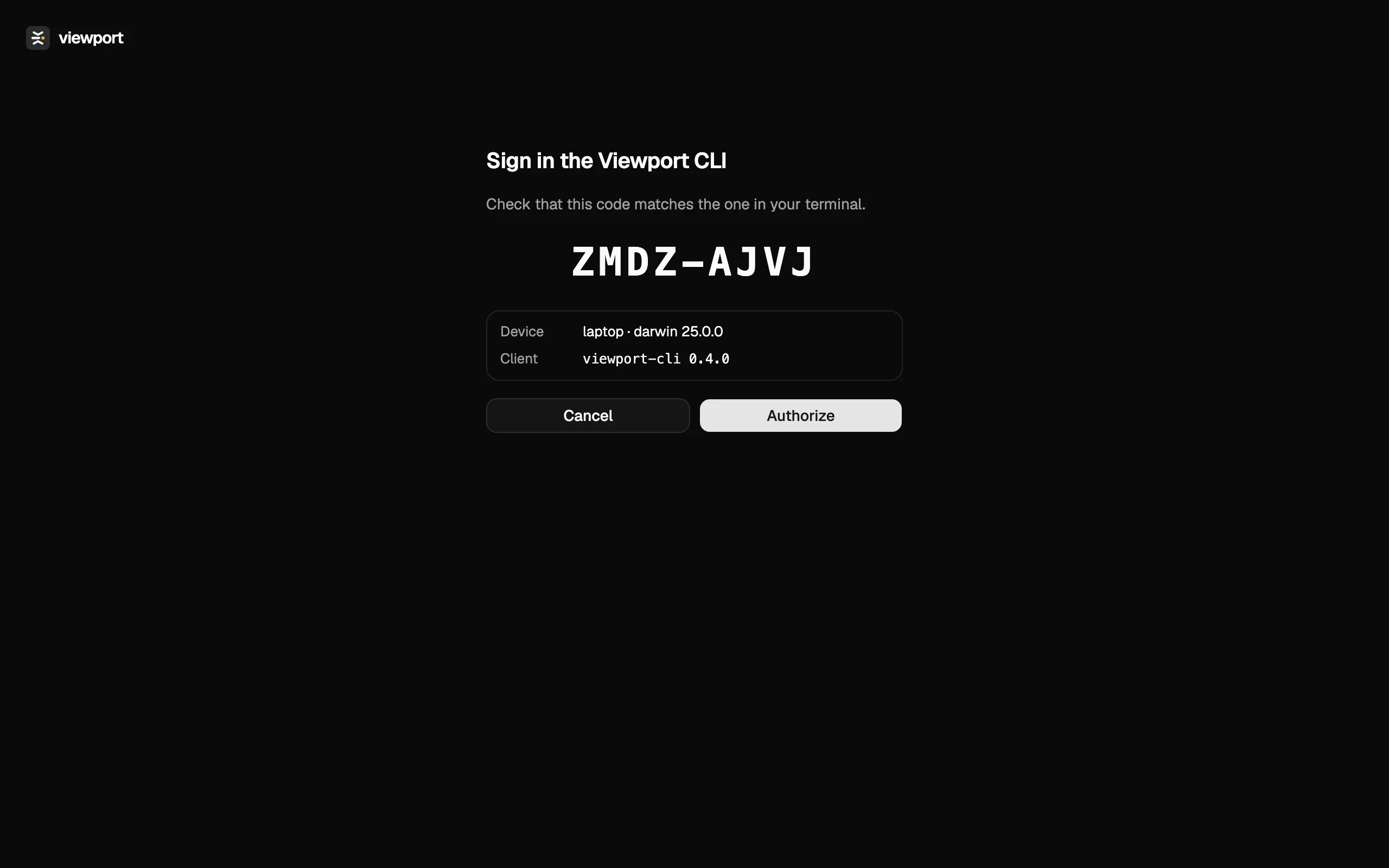
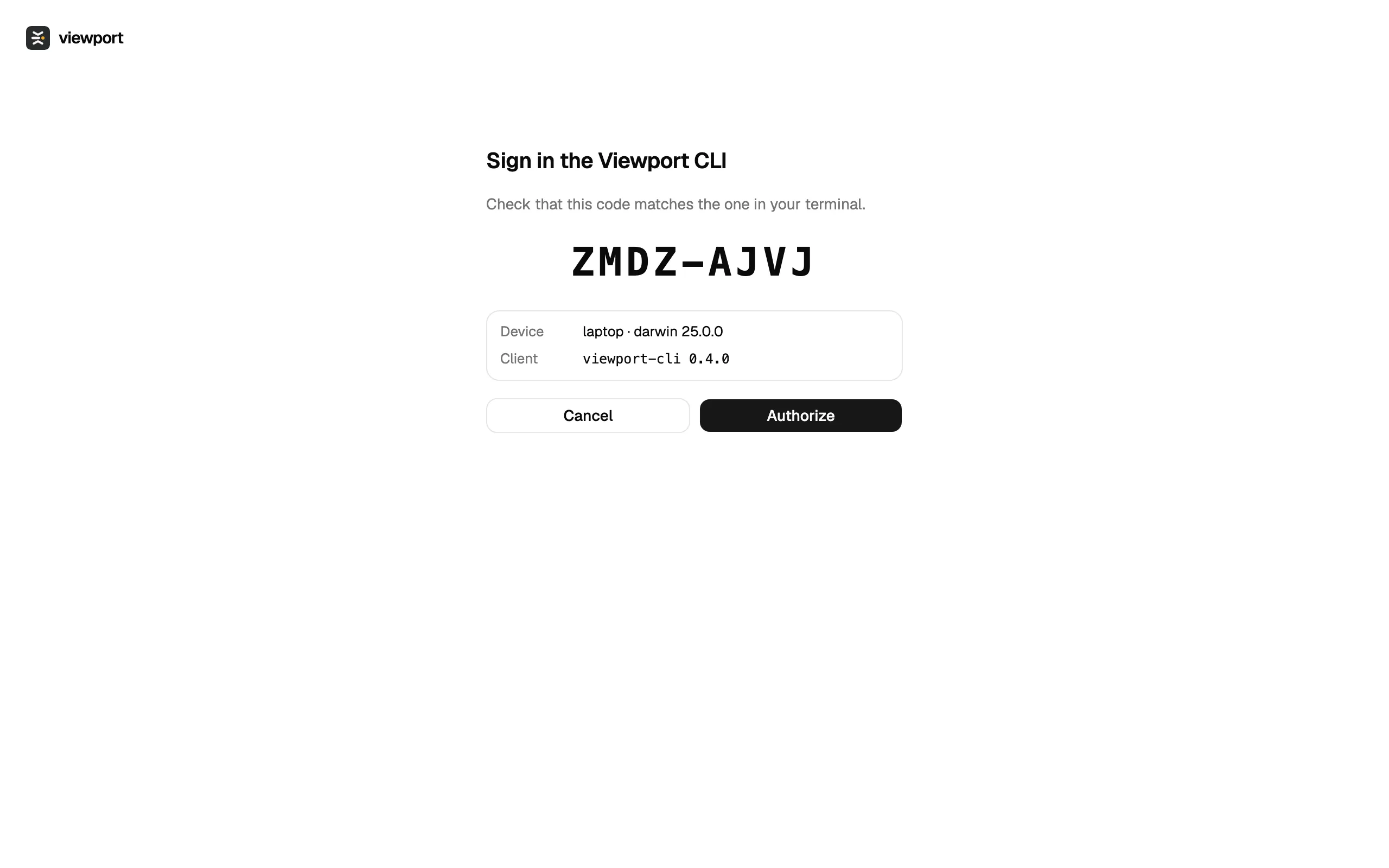
- Check that the code matches the one in your terminal.
- Click Authorize. Click Cancel if you did not start this sign-in.
- The page says the CLI is signed in, and the terminal prints
logged in.
The CLI waits up to 10 minutes for you to authorize. On a machine without a browser, or over SSH, set VIEWPORT_NO_BROWSER=1 and open the printed URL on any device where you are signed in:
VIEWPORT_NO_BROWSER=1 viewport loginManage your CLI tokens
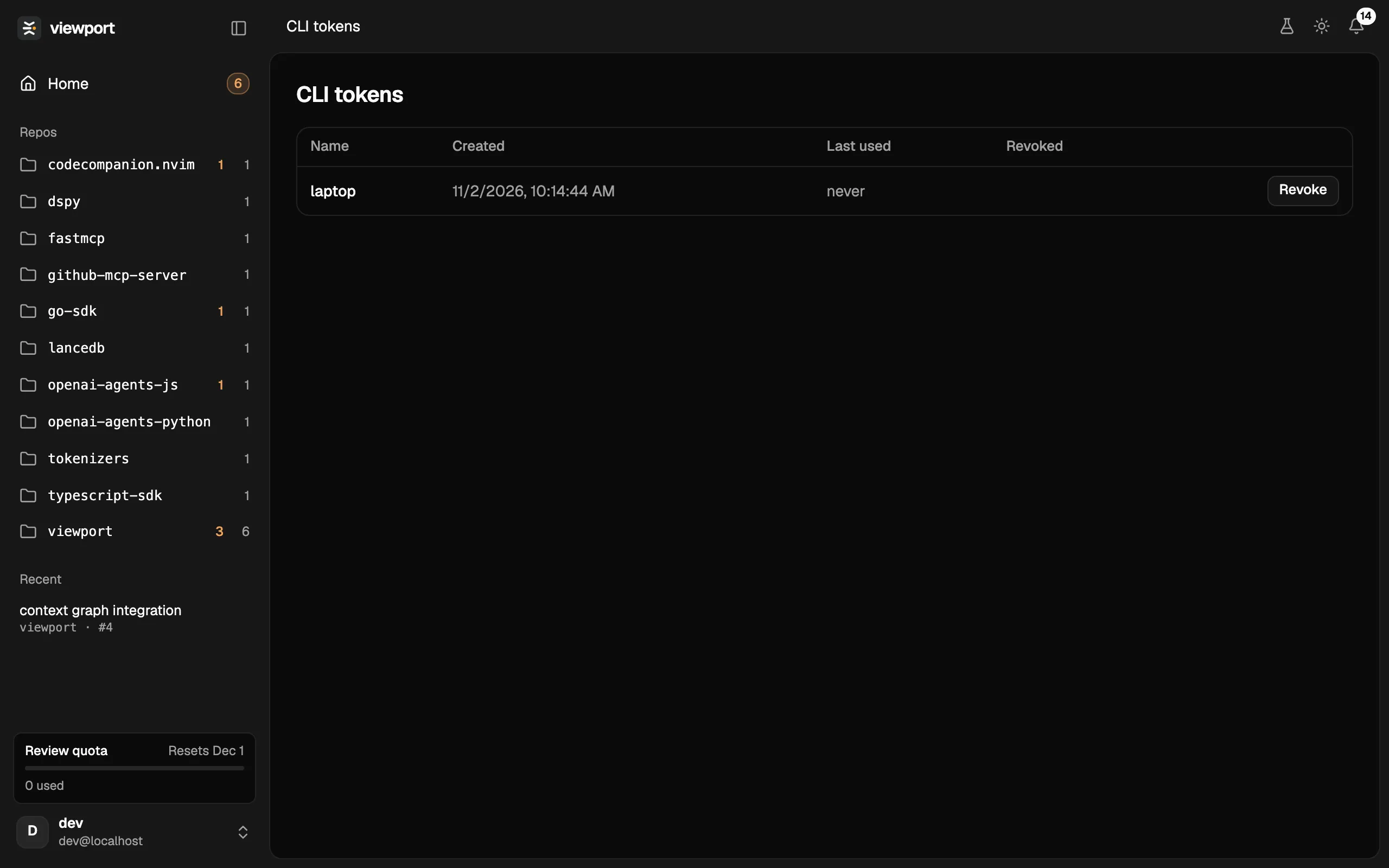
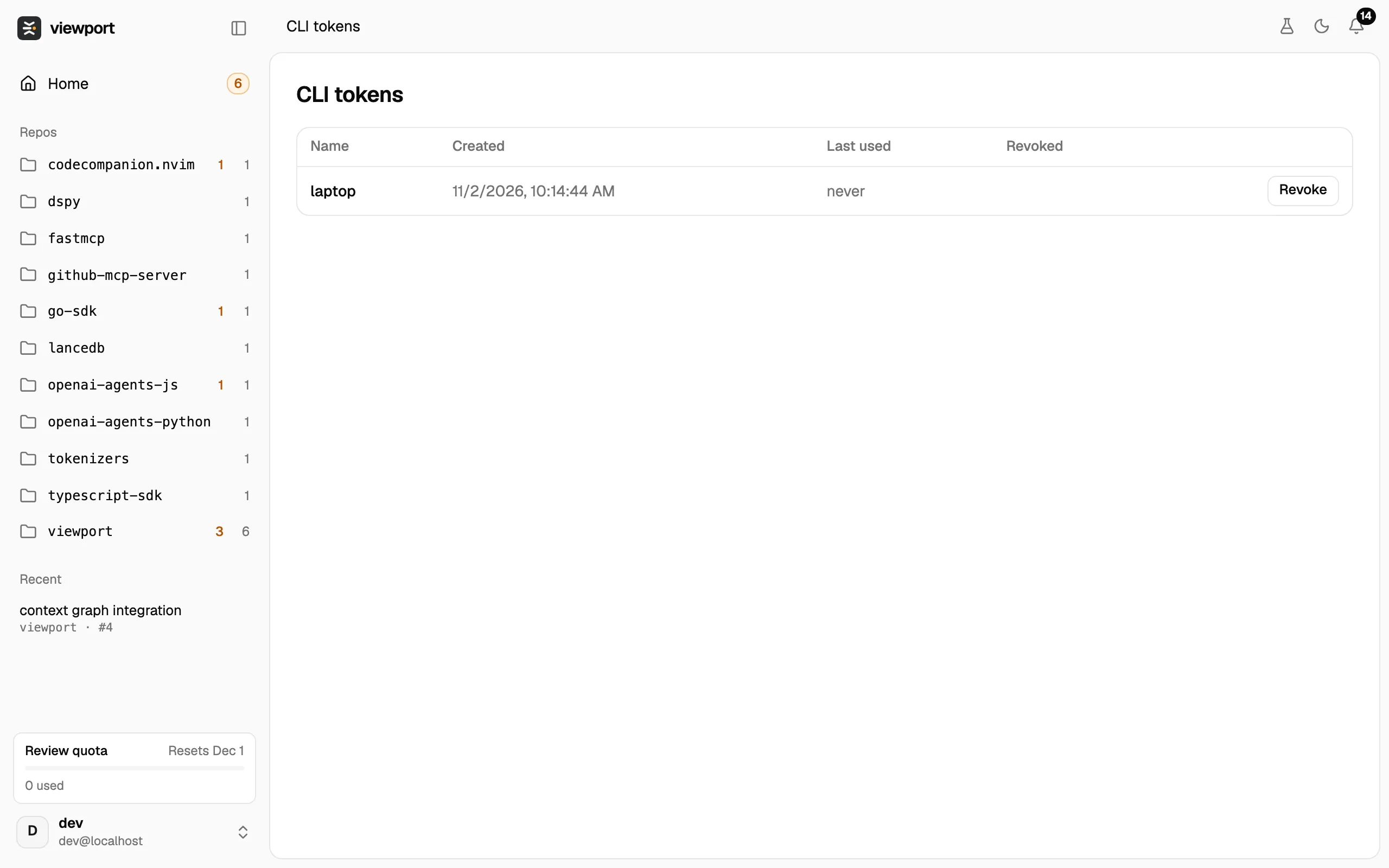
Section titled “Manage your CLI tokens”Each viewport login creates a token, stored on your machine in ~/.viewport/credentials.json. To see your tokens, open the menu under your name at the bottom left of the app and choose CLI tokens.
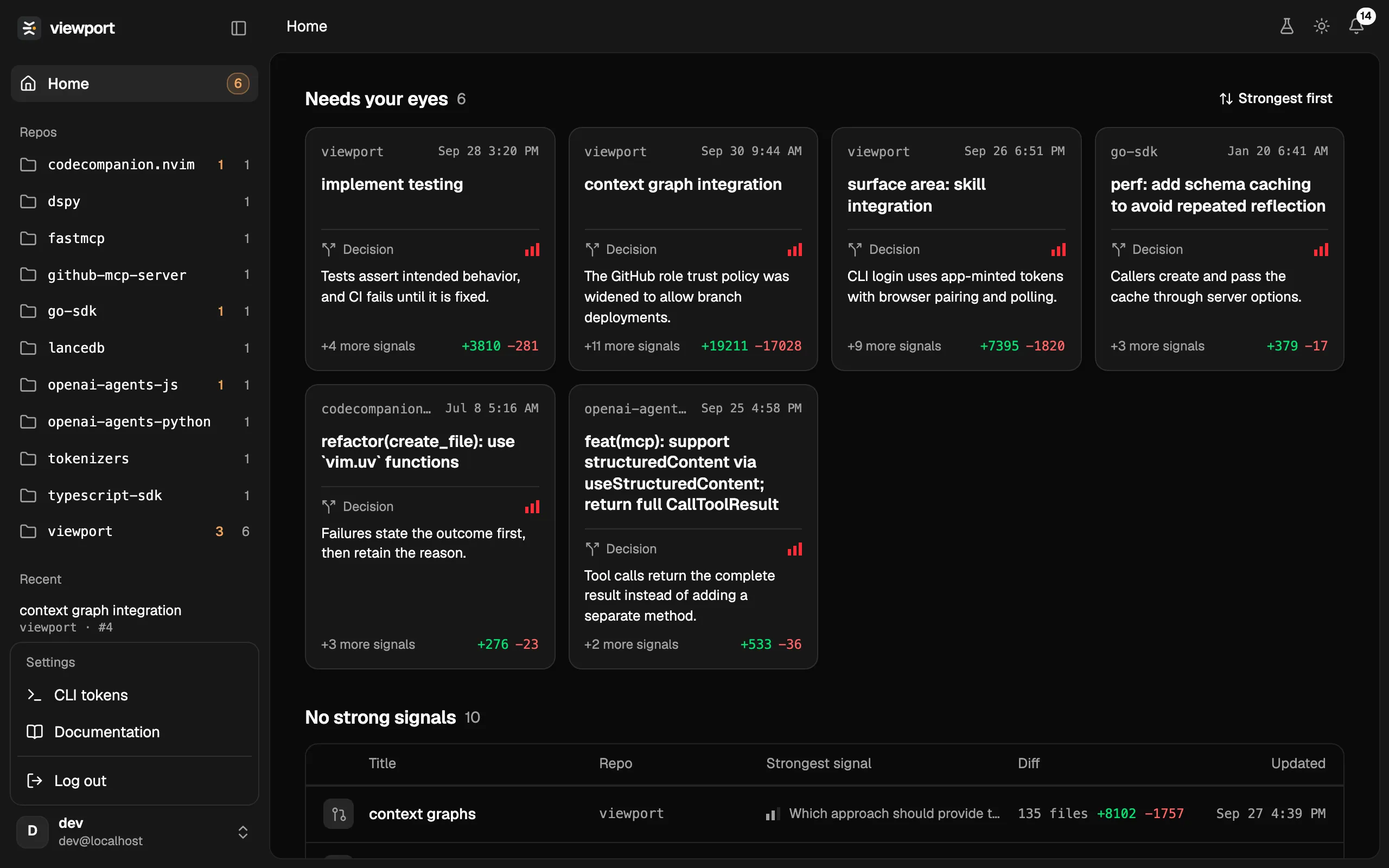
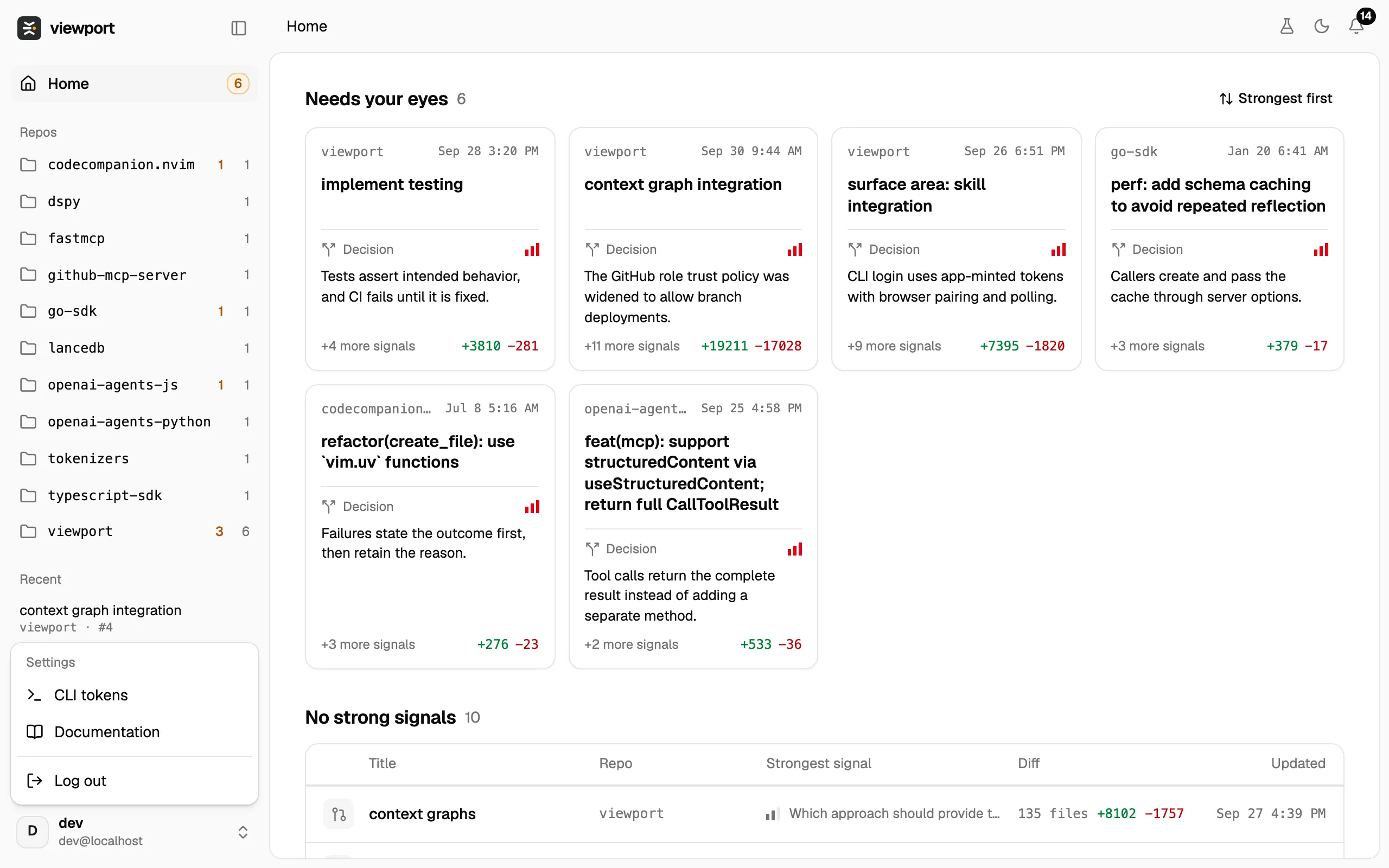
The page lists each token by the machine’s name, with when it was created, when it was last used and whether it was revoked. Click Revoke to sign that machine out. Run viewport login on it again to sign it back in.
Update
Section titled “Update”Run the installer again. It replaces the binary and reruns viewport install.
Uninstall
Section titled “Uninstall”viewport uninstallThis removes the /viewport skill and the capture hooks that viewport install added to your agents. It leaves the binary and your ~/.viewport folder in place; delete them yourself if you want them gone:
rm ~/.local/bin/viewportrm -rf ~/.viewportDeleting ~/.viewport removes your sign-in and the conversations recorded on this machine. To also invalidate the token on the server, revoke it on the CLI tokens page.